# Git Host Access Credentials
This page describes how to create credentials for your Git host (GitHub, GitLab, Bitbucket, or Azure DevOps)
that Atlantis will use to make API calls.
[[toc]]
## Create an Atlantis user (optional)
We recommend creating a new user named **@atlantis** (or something close) or using a dedicated CI user.
This isn't required (you can use an existing user or github app credentials), however all the comments that Atlantis writes
will come from that user so it might be confusing if its coming from a personal account.
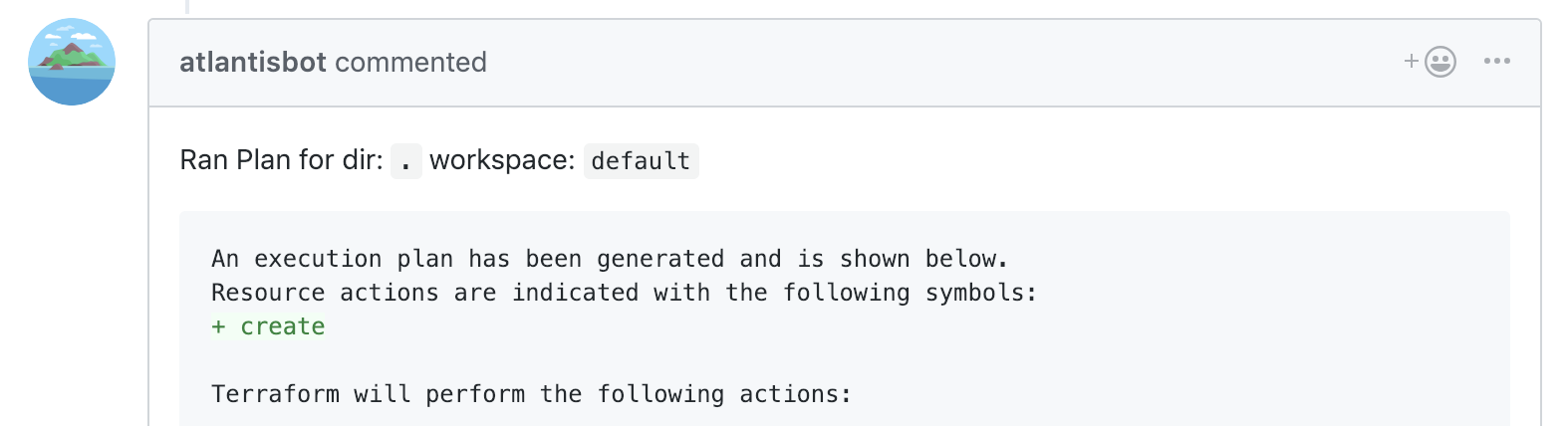
An example comment coming from the @atlantisbot user
## Generating an Access Token
Once you've created a new user (or decided to use an existing one), you need to
generate an access token. Read on for the instructions for your specific Git host:
* [GitHub](#github-user)
* [GitHub app](#github-app)
* [GitLab](#gitlab)
* [Bitbucket Cloud (bitbucket.org)](#bitbucket-cloud-bitbucket-org)
* [Bitbucket Server (aka Stash)](#bitbucket-server-aka-stash)
* [Azure DevOps](#azure-devops)
### GitHub user
- Create a Personal Access Token by following: [https://docs.github.com/en/authentication/keeping-your-account-and-data-secure/creating-a-personal-access-token#creating-a-token](https://docs.github.com/en/authentication/keeping-your-account-and-data-secure/creating-a-personal-access-token#creating-a-token)
- Create the token with **repo** scope
- Record the access token
::: warning
Your Atlantis user must also have "Write permissions" (for repos in an organization) or be a "Collaborator" (for repos in a user account) to be able to set commit statuses:

:::
### GitHub app
::: warning
Available in Atlantis versions **newer** than 0.13.0.
:::
- Start Atlantis with fake github username and token (`atlantis server --gh-user fake --gh-token fake --repo-allowlist 'github.com/your-org/*' --atlantis-url https://$ATLANTIS_HOST`). If installing as an **Organization**, remember to add `--gh-org your-github-org` to this command.
- Visit `https://$ATLANTIS_HOST/github-app/setup` and click on **Setup** to create the app on Github. You'll be redirected back to Atlantis
- A link to install your app, along with its secrets, will be shown on the screen. Record your app's credentials and install your app for your user/org by following said link.
- Create a file with the contents of the GitHub App Key, e.g. `atlantis-app-key.pem`
- Restart Atlantis with new flags: `atlantis server --gh-app-id --gh-app-key-file atlantis-app-key.pem --gh-webhook-secret --write-git-creds --repo-allowlist 'github.com/your-org/*' --atlantis-url https://$ATLANTIS_HOST`.
NOTE: Instead of using a file for the GitHub App Key you can also pass the key value directly using `--gh-app-key`. You can also create a config file instead of using flags. See [Server Configuration](/docs/server-configuration.html#config-file).
::: warning
Only a single installation per GitHub App is supported at the moment.
:::
### GitLab
- Follow: [https://docs.gitlab.com/ce/user/profile/personal_access_tokens.html#create-a-personal-access-token](https://docs.gitlab.com/ce/user/profile/personal_access_tokens.html#create-a-personal-access-token)
- Create a token with **api** scope
- Record the access token
### Bitbucket Cloud (bitbucket.org)
- Create an App Password by following [https://support.atlassian.com/bitbucket-cloud/docs/create-an-app-password/](https://support.atlassian.com/bitbucket-cloud/docs/create-an-app-password/)
- Label the password "atlantis"
- Select **Pull requests**: **Read** and **Write** so that Atlantis can read your pull requests and write comments to them
- Record the access token
### Bitbucket Server (aka Stash)
- Click on your avatar in the top right and select **Manage account**
- Click **Personal access tokens** in the sidebar
- Click **Create a token**
- Name the token **atlantis**
- Give the token **Read** Project permissions and **Write** Pull request permissions
- Click **Create** and record the access token
### Azure DevOps
- Create a Personal access token by following [https://docs.microsoft.com/en-us/azure/devops/organizations/accounts/use-personal-access-tokens-to-authenticate?view=azure-devops](https://docs.microsoft.com/en-us/azure/devops/organizations/accounts/use-personal-access-tokens-to-authenticate?view=azure-devops)
- Label the password "atlantis"
- The minimum scopes required for this token are:
- Code (Read & Write)
- Code (Status)
- Member Entitlement Management (Read)
- Record the access token
## Next Steps
Once you've got your user and access token, you're ready to create a webhook secret. See [Creating a Webhook Secret](webhook-secrets.html).